
Do You Still Need a Document Scanner? Phone vs Printer vs Dedicated Scanner

Do You Still Need a Document Scanner? Phone vs Printer vs Dedicated Scanner
For a few pages now and then, a phone scanning app or the scanner in an all-in-one printer will usually do the job. A dedicated scanner starts to make sense when you scan regularly, need both sides of a page captured in one pass, handle mixed sizes such as receipts and cards, or are digitising a box of photos.
What decides it is how much you scan and what you scan, more than image quality.
You scan a few single pages a month and the files are easy to read and find later.
Small batches at a desk are fine if its feeder, or its flatbed, already copes with your paper.
Once scanning becomes a weekly job, with stacks of double-sided pages, receipts or old photos to get through.
Some all-in-ones already scan both sides automatically, so look at your printer's specs first.
It comes down to volume and what you're scanning
Most people asking this already scan with their phone. What they want to know is whether that habit holds up once the paper starts piling up. Two things settle it.
Volume comes first. A form every few weeks is a different job from a weekly stack of invoices, and a method that feels fine for one page becomes a chore at twenty. Then there's the paper itself. Flat, single-sided A4 is easy for almost any method; curled receipts, double-sided contracts, plastic cards and glossy photo prints are what separate them.
Page count doesn't tell you everything, either. A handful of awkward documents every day can eat more time than one big stack a month, so picture an ordinary week of paperwork when you weigh it up.
What phone scanning does well, and where it falls short
Phone scanning is far better than it used to be. On an iPhone or iPad, the Notes app can detect a document, capture it automatically and add several pages to a single scan (see Apple's guide to scanning documents). Google Drive and Adobe Scan have similar tools. When you need a copy of a signed form or a single letter in a hurry, the phone in your pocket is the obvious choice.
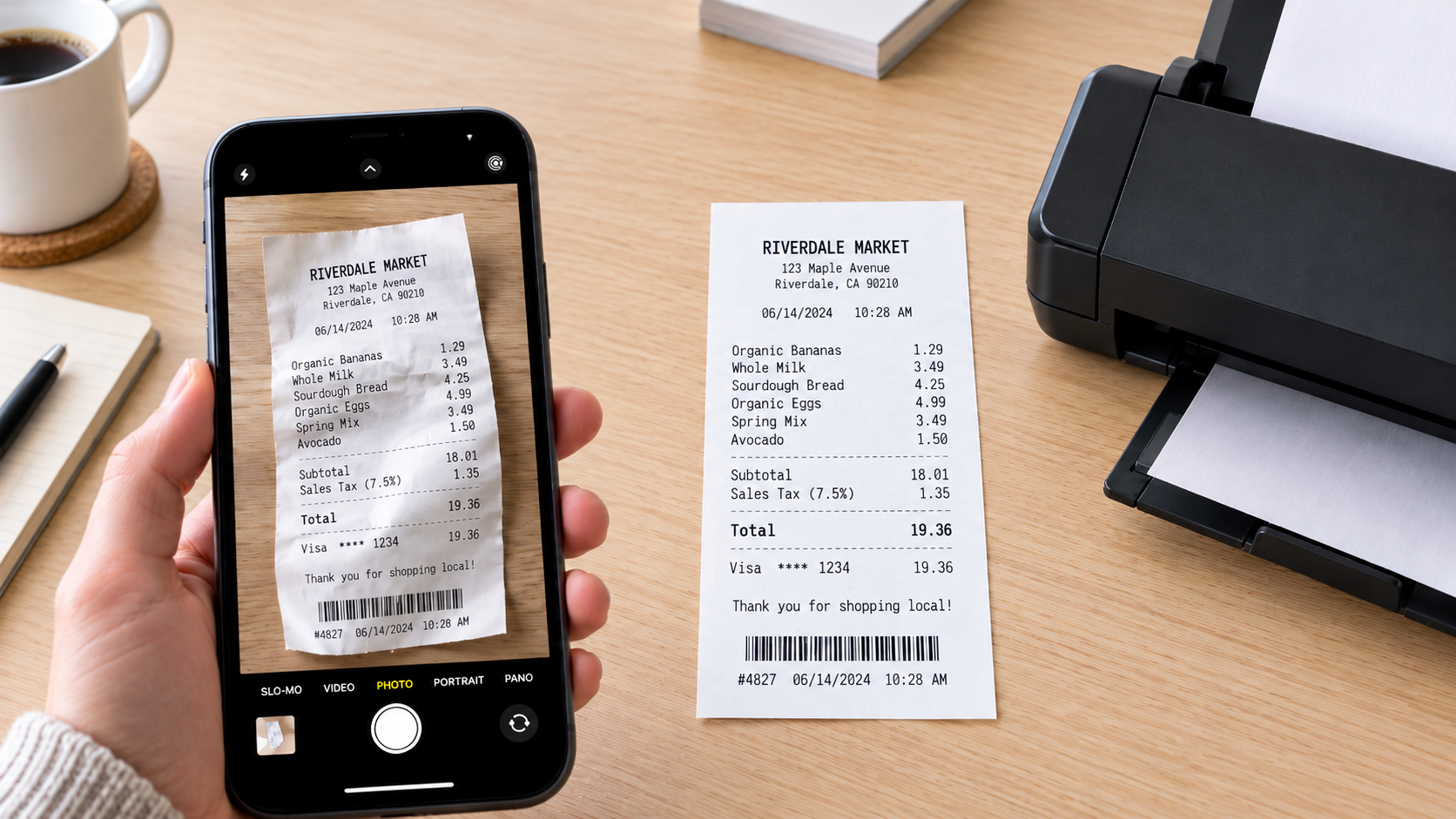
Trouble starts with awkward paper and bigger batches. A thermal receipt curls, and a long one rarely lies flat enough for a clean shot, so the text warps. Glossy paper throws back the overhead lights, and your own hand or phone can put a shadow across the page.
Effort is the other cost. Every page has to be lined up and captured, and often cropped or straightened afterwards, which adds up fast over a long document. Double-sided sheets are worse: you flip and capture each one twice, then confirm the pages landed in the right order.
Where the scan ends up matters too. Plenty of phone apps save to a cloud account by default, something to think about before you scan a tax file or a contract. There's more on this in the security section further down.
The printer you already own: the all-in-one middle ground
Own an all-in-one printer? Then you may already have a capable scanner. Its flatbed gives a flat, evenly lit copy with none of the phone's glare, good for one-off documents, book pages and cards, plus the odd photo. The catch is that it may only take one page at a time, so a long document means lifting the lid again and again.
Some models add an automatic document feeder (ADF) on top, so you can load a stack and walk away. Feeders aren't all equal. A single-sided feeder leaves double-sided documents needing a second pass, while a duplex one scans both sides automatically.
Look in your printer's specifications for two-sided (duplex) scanning before you count on it. Automatic two-sided printing is a separate feature, and a printer that prints on both sides won't necessarily scan both sides.
A printer with a feeder may be all a household needs for a handful of documents a week. Judge each model on its scanning features instead of its category, because a well-equipped all-in-one can suit a small batch routine better than a basic scanner. If a new printer is on the cards anyway, our guide to the best home printers in Australia is a good place to start. Put the scanning specs next to the running costs when you compare.
When a dedicated scanner pays off
Dedicated scanners do one thing, and you notice it the moment scanning becomes routine. Sheet-fed document scanners are designed to work through a stack of pages without you standing over them, and many scan both sides of each page in a single pass. A double-sided contract then takes no more effort than a single-sided one. Epson, for instance, lists one-pass two-sided scanning and a 100-sheet feeder for its RapidReceipt RR-600W.
The bundled software matters as much as the hardware. Scanners aimed at paperwork often include optical character recognition (OCR), which turns a scan into a searchable PDF, so you can pull up a document by typing a supplier name or invoice number instead of opening files one by one. OCR can still misread small print or faded text, so compare important figures such as amounts and dates against the scan itself.
Volume is the trade-off. Many scanner spec sheets list a recommended daily duty cycle, as Epson does for the RR-600W, which shows how much scanning the machine is designed for each day. Buy for the volume you actually scan in a week; the top speed on the spec sheet is a poor guide. A sole trader clearing a month of receipts doesn't need the same machine as an office scanning client files every day.
Once your scanning has outgrown your phone or printer, compare the range of document and photo scanners to see which type fits your paperwork.
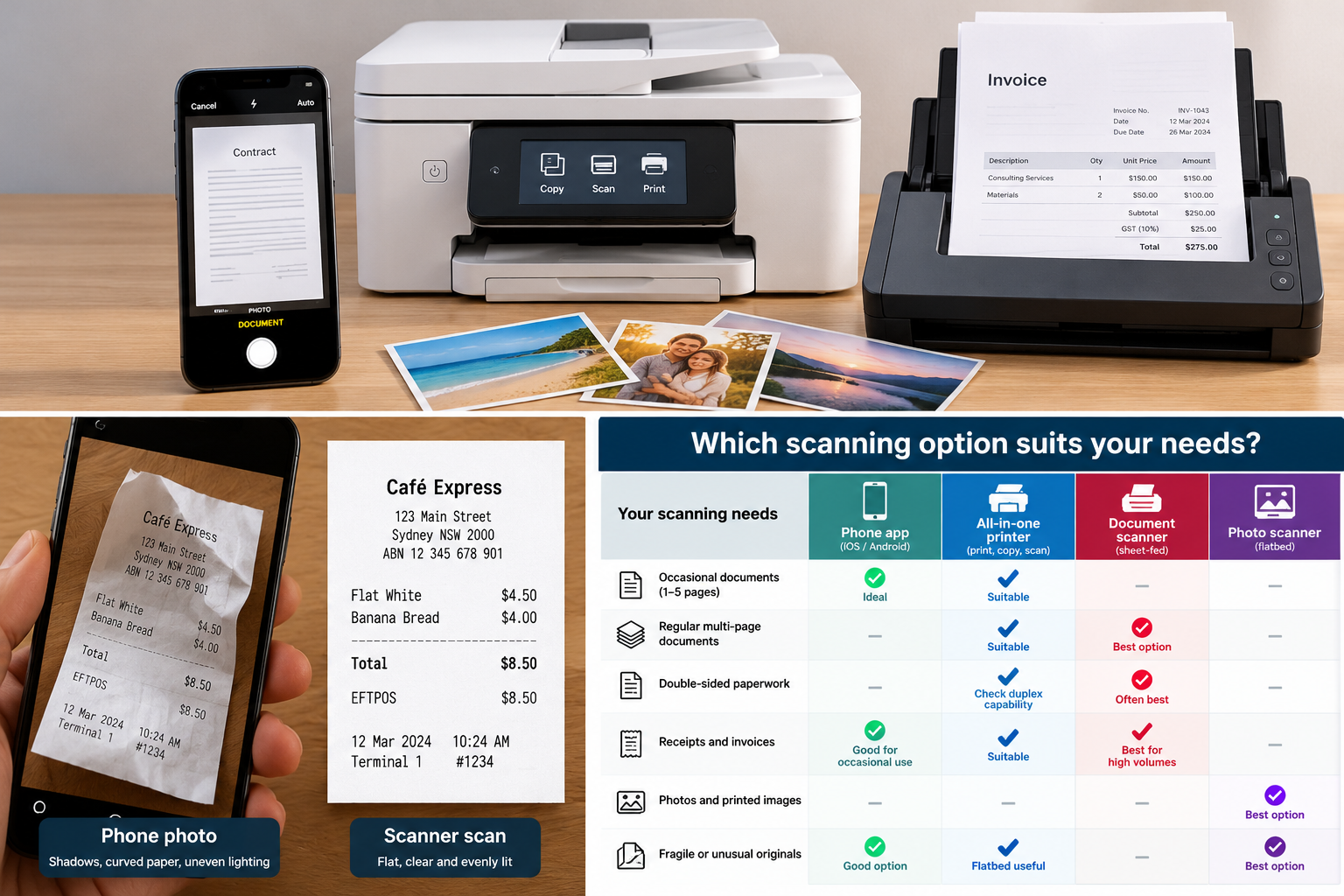
Which scanning method suits each job
No single method wins everywhere. Here's how common scanning jobs line up with the method that usually handles them, and the point where stepping up makes sense.
| Job | Best fit | Why |
|---|---|---|
| One-off form or letter | Phone app | Quick, and it's already in your hand. A flatbed gives a cleaner copy if you need one. |
| Weekly batch of 20 or more pages | All-in-one with a feeder, or a document scanner | Feeding a stack beats capturing each page by hand. If you scan most days, go dedicated. |
| Tax receipts | Phone for the odd one; receipt or document scanner once they pile up | Receipts curl and fade, and a scanner takes small sizes in batches. |
| Double-sided contracts | Document scanner, or an all-in-one with a duplex feeder | Both sides are captured automatically and stay in order. |
| Old photo prints | Flatbed for a few; photo scanner for boxes | No phone glare, and a photo feeder gets through large collections much faster. |
| ID and cards | Flatbed or phone app | Small items scan cleanly on glass. For a quick copy, the phone is fine. |
| Scanning on the go | Phone app, or a portable scanner for regular travel | Your phone goes everywhere with you. A portable scanner suits people who often scan away from the desk. |
If the batch and double-sided rows sound like your week, start with document scanners with automatic feeders. Away from the desk a lot? Look at portable scanners, the compact alternative.
Scanning receipts for tax
Receipts deserve their own look, because the ATO sets a standard for digital copies. Its digital record-keeping guidance accepts scanned or photographed records if they are "true and clear reproductions of the original paper records". Meet that standard and you generally don't need to hold on to the paper originals as well, unless a particular law requires you to.
One trap to avoid: typing a receipt's details into accounting software doesn't count as keeping it. The ATO still expects you to keep the record itself, either as the paper original or as a digital copy.
So scan quality has real consequences. Thermal receipts fade over time, and scanning them soon after you get them beats leaving them for tax time. Before throwing out any originals, look up the ATO's current guidance on how long your records need to be kept.
Important: A blurry or cropped copy can't be fixed once the paper is gone. Open each scan and make sure every amount, date and supplier name is readable before the original goes in the bin.
A phone will handle a few receipts, provided you flatten them and look over each image. A steady flow is what receipt scanners are made for. Epson lists its RapidReceipt RR-600W as handling receipts and cards and creating searchable PDFs with OCR. Treat all of this as general information; current ATO guidance or your tax adviser can tell you what applies to your own records.
Digitising old photos
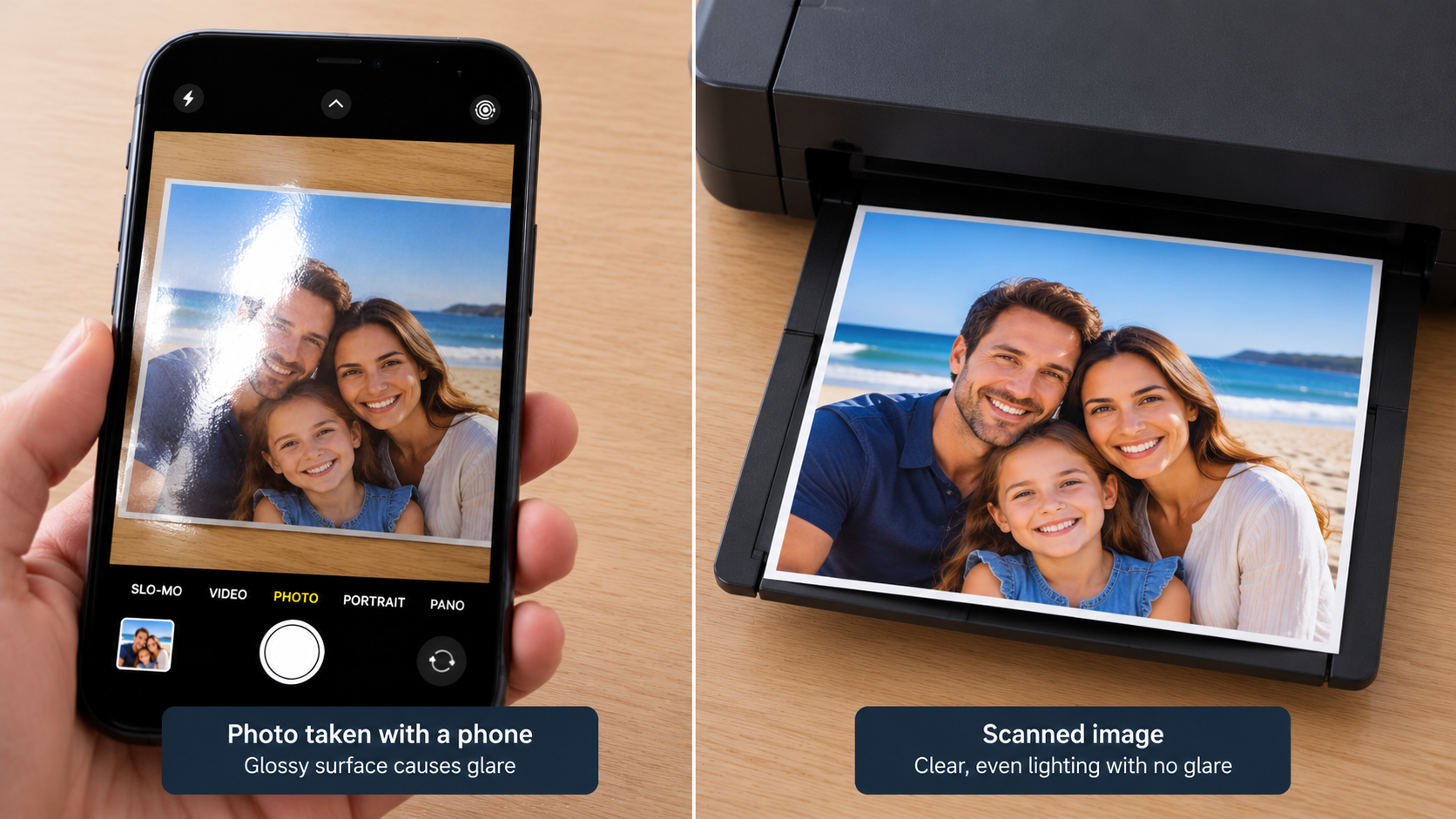
Copying a handful of photos with a phone is fine. A whole album is harder, because glossy prints reflect light and keeping every shot glare-free and square gets fiddly. A flatbed lays each print flat under even light, which suits small batches and odd-sized prints.
Boxes of loose prints go much faster through a photo scanner with a feeder. Epson says its FastFoto FF-680W scans photos at around one per second at 300 dpi and can capture the back of each print in the same pass, so handwritten dates and names stay with the image. Torn or curled prints, and ones stuck in albums, are usually better off on a flatbed.
Keeping scanned documents secure
A scanned tax record or bank statement is as sensitive as the paper version, and the same goes for IDs and contracts. Before scanning anything important, find out where your app or scanner software saves files. Many phone apps sync to a cloud account by default. That's fine for some documents and not for others.
Desktop scanners have their own settings to go through. Pick the save location on purpose, whether that's a folder on your computer or a cloud service you already trust. A simple naming pattern helps as well (the date and supplier works), since a faster scanner won't fix a filing problem on its own.
When the digital copy is safely stored and you're sure the original isn't needed, get rid of the paper properly. Our guide to choosing a home paper shredder runs through the options.
Choosing a scanner type if you need one
Decided a dedicated scanner is worth it? Match the type to the job you do most. Stacks and double-sided pages call for a sheet-fed document scanner. Books and fragile items sit better on a flatbed, which also handles the occasional photo, while large print collections are a job for a photo scanner. Receipt scanners are aimed at small-business paperwork, portable models at scanning away from the desk, and A3 scanners at bigger originals like plans and artwork.
Frequently Asked Questions
Do I need a document scanner if I only scan a few pages a month?
Probably not. When your phone or all-in-one printer gives you readable files without much fuss, a dedicated scanner adds little for that workload. It becomes worth considering once scanning turns into a regular chore.
Can I throw away paper receipts after scanning them?
Generally yes, as long as your scans are true and clear reproductions of the originals, which is the standard the ATO sets. In most cases you don't need to keep the paper as well, unless a particular law requires it. Check the ATO's current guidance on how long to keep records before you discard anything.
Is a phone scan good enough for tax records?
It can be. What counts is that the image is a true and clear reproduction of the original, so flatten curled receipts and keep glare off the paper, then make sure every image is readable. Scan thermal receipts soon after you get them, because they can fade.
Do all-in-one printers scan both sides automatically?
Some do. The printer needs an automatic document feeder, and that feeder has to support two-sided (duplex) scanning. Flatbed-only models scan one side at a time, so look at your model's specifications.
Should I scan old photos with my phone or a scanner?
A phone copes with a few photos if you can keep the glare off. An album or a box of prints is a better job for a flatbed or a photo scanner with a feeder, which give more consistent results with less effort.
Do I need special software to make scans searchable?
Not always. Many scanners come with software that uses optical character recognition (OCR) to create searchable PDFs. See what's bundled with the model you're considering before paying for separate software.


Any comments?